A significant number of Aruba wireless LAN users are currently using an architecture based on AOS 8. However, with new Wi-Fi 7 access points supporting only AOS 10, it's time to consider migrating to the new operating system.
Migrating to a new operating system is always a challenge for operators. The reality is that migration is a bit hesitant because you never know what issues might arise and unexpected failures might occur.
So, in this post, we'll look at some things to consider before migrating to AOS 10.
Migration Preparation (Planning)
First of all, you need to understand the AOS 8 architecture.
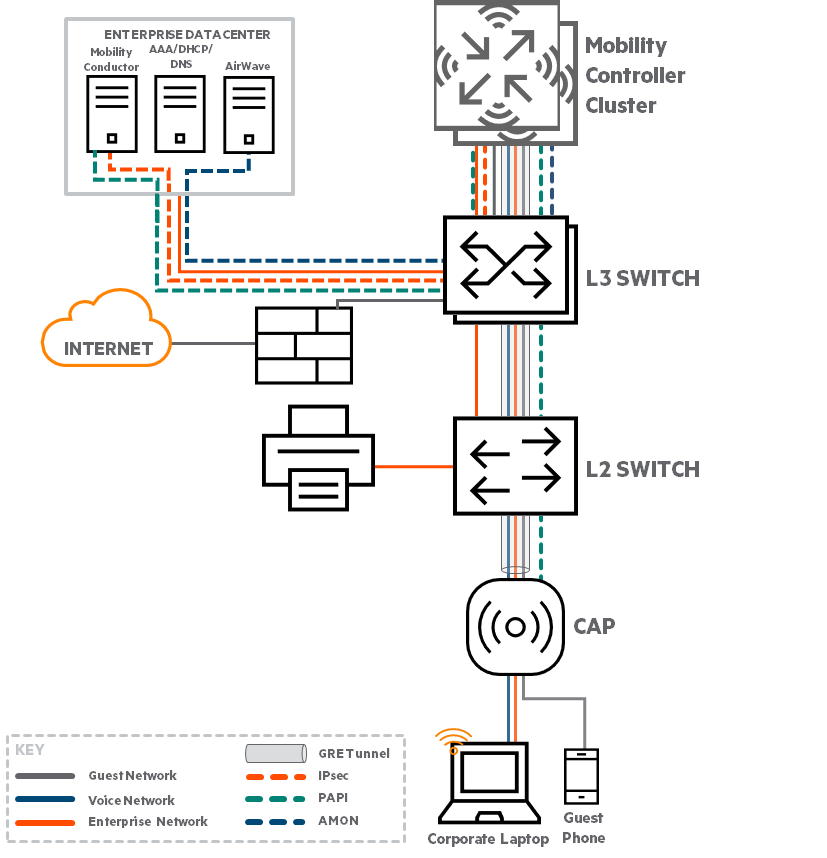
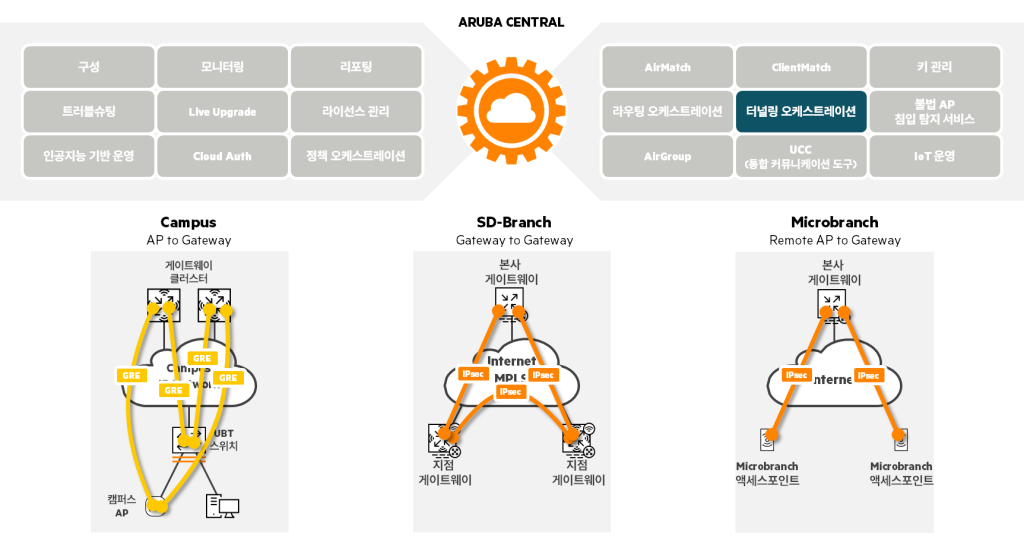
The left-hand figure shows an architecture consisting of a campus AP, a mobility controller cluster, a mobility conductor, and AirWave.
In an AOS 8 environment, traffic moves as follows:.
CAP1Wow MC2A GRE tunnel is created between the clusters.
Client traffic connected to Wi-Fi is encapsulated by the AP and forwarded to the cluster through a GRE tunnel.
The controller decapsulates the traffic, inspects it, assigns user roles, tags it, and then forwards it to the trunked user VLAN over the local interface.
MC Cluster and MCR3An IPsec tunnel is established between them to protect all control plane traffic exchanged between them.
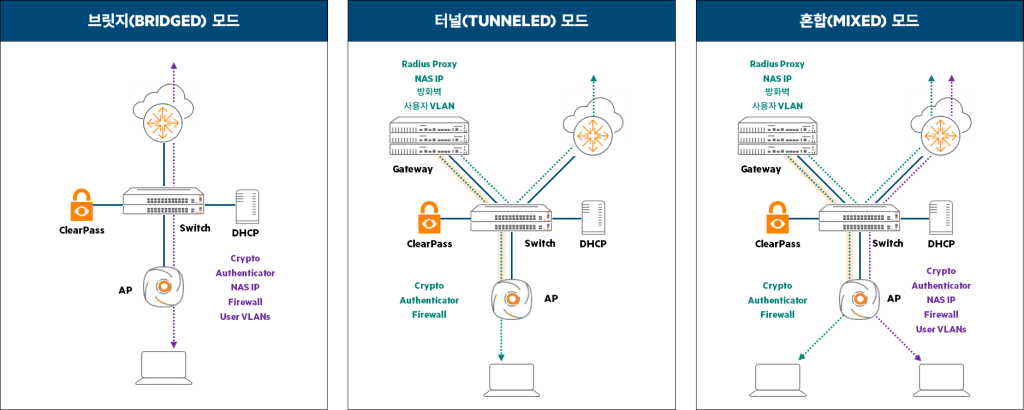
AOS 10 supports three types of architecture depending on the configuration.
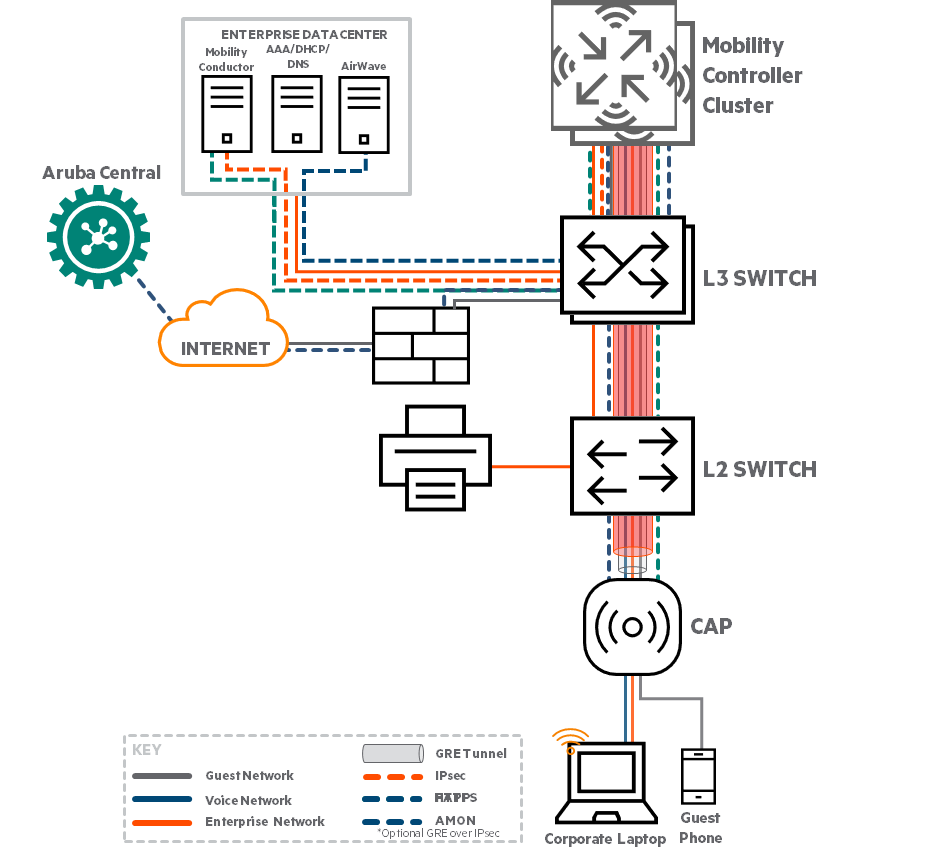
Here we will compare it with AOS 10 tunnel mode, which is similar to AOS 8 campus architecture. Wi-Fi client traffic is handled similarly in both AOS 10 tunnel mode and AOS 8 campus mode, but there are some differences.
The GRE tunnel is configured identically between the CAP and MC.
In AOS 10, GRE can also be encapsulated with IPSec.
While AOS 8 uses only GRE tunnels by default, AOS 10 now provides IPsec over GRE to enable end-to-end encryption of control and data traffic when required by deployment or security policies.
The existing MCR and AirWave will be replaced by Central.
IPSec, AMON, and SNMP traffic between appliances is replaced with TCP 443 traffic from APs and gateways to Central.
Key Considerations When Migrating to AOS 10
Ensure that AOS 10 is properly licensed and subscribed to Central.
HPE GreenLake Account Check if an account has been created and create one if it does not exist.
Before upgrading, make sure your controller's AOS version is 8.10.0.12 or 8.12.0.1 or higher. → Because of specific functions and commands for migration and rollback functionality.
Ensure that controller discovery is properly configured on the AP. → Make sure the AP's system profile points to the VRRP address and not the individual MC's IP address.
Ensure that the VLAN (management interface) of the campus AP and the wireless client bands are not placed in the same VLAN. → If it is such an environment, separate them into different VLANs when configuring AOS 10.
Potential issues that may arise during migration
If you plan to use Bridge mode architecture... → NAD each AP from ClearPass (or authentication server)6Requires addition. Otherwise, authentication requests cannot be processed.함
IAS in AOS 87If you are using AOS 10 as your authentication server, you will need to find an alternative solution as it is no longer supported.
If your APs are configured with static IPs in AOS 8, check if DHCP service is available. → In AOS 10, AP requires DHCP service
Check if jumbo frames are supported on the wired LAN between the AP and the gateway (controller). → Performance issues may occur due to packet fragmentation of fully encapsulated wireless traffic.
Verify that the AOS 8 cluster is in an L2 cluster. → Hitless Failover does not work when in L3 mode. → When in L3 mode, the AP does not maintain the client's session when moving from the existing MC to another MC.
Q. Can I automatically upgrade my AOS 8 controller to AOS 10 using ZTP?
A. All controllers that have previously had a firmware upgrade performed You need to upgrade manually.
There are several ways to upgrade to AOS 10. It's hard to say that one method is the right answer because network architectures can have different configurations.
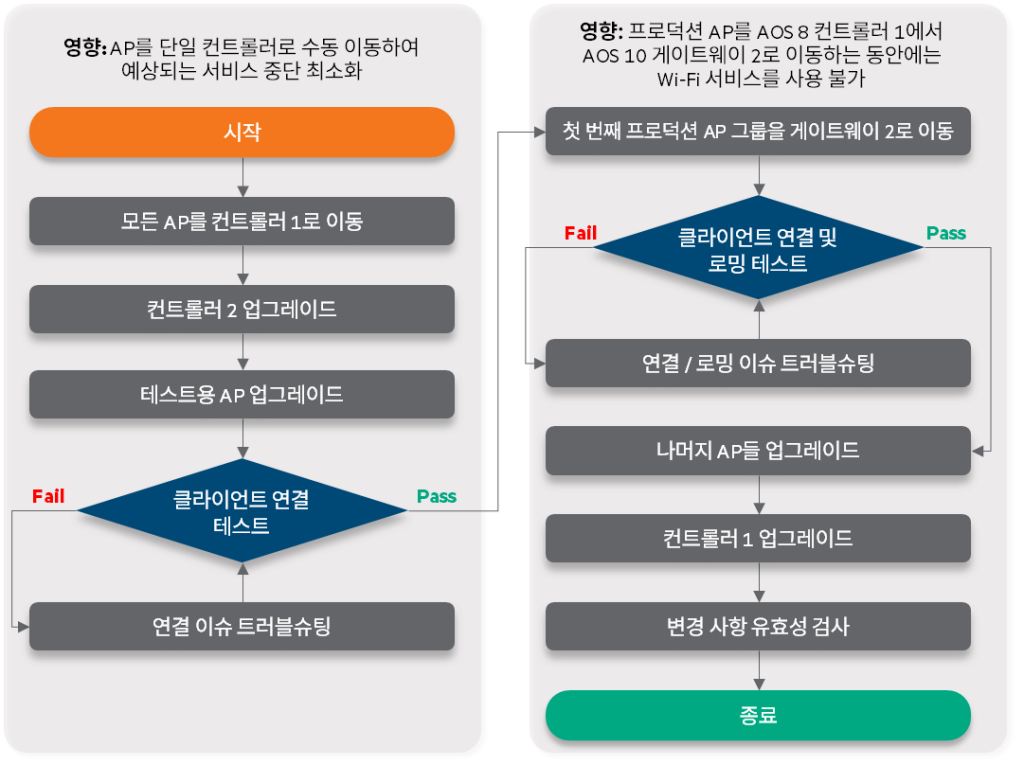
Instead, HPE Aruba Networking offers Verified Guide8One example presented inI would like to talk about it. This is an upgrade method in an environment where two MCs are connected in an L2 cluster environment.
1. Controller #2 upgrade
First, move all APs to controller #1.
(USWH1MC01) [MDC] #apmove all target-v4 1.1.1.1
If all APs have been moved to controller #1, upgrade controller #2, which has nothing connected to it.
Connect to and log in to the controller #2 via a web browser
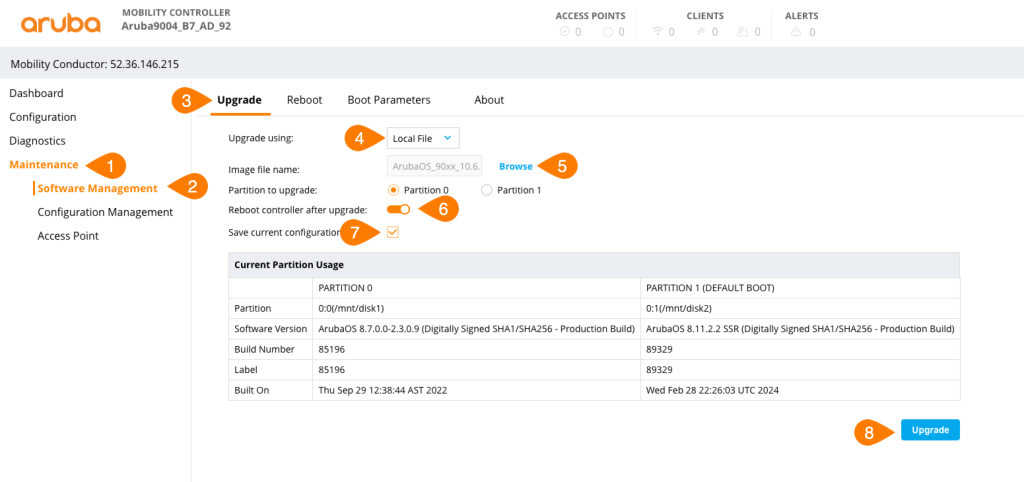
Maintenance > Software Management > Upgrade Upload images downloaded from the tab
Back up your appliance configuration information to prepare for any unforeseen circumstances.
When you see a message that the upload is complete, click the button to reboot
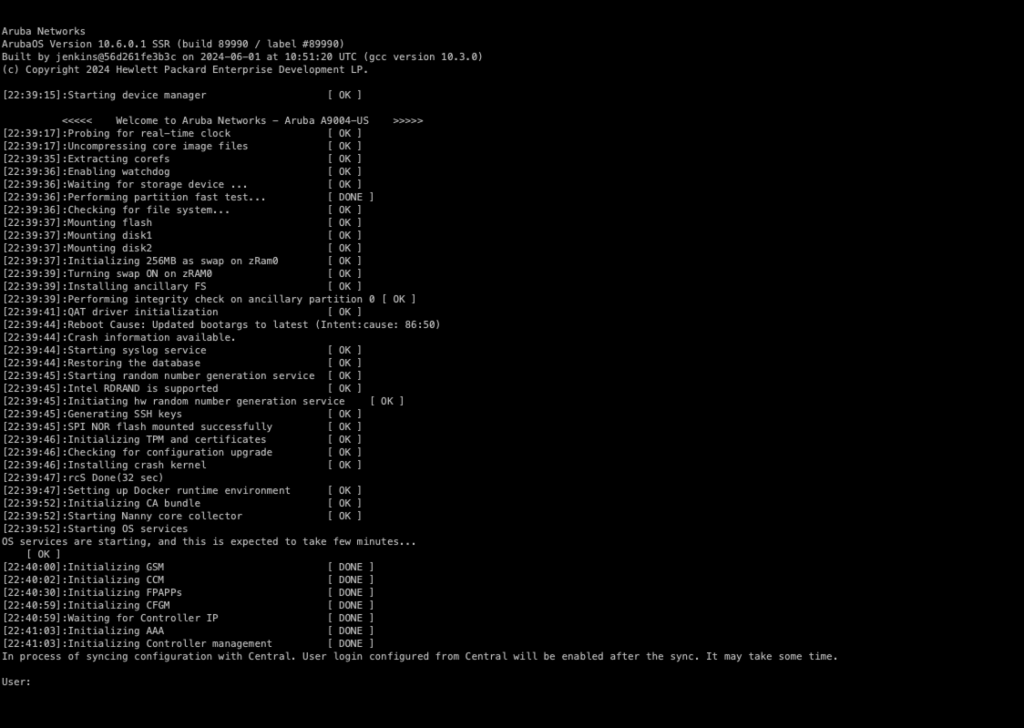
Wait for the controller to appear in the specified Aruba Central group or monitor it via the console.
When you upgrade to AOS 10, the existing term Controller will be replaced with the name Mobility Gateway.
Verify that the upgraded gateway is connected to the network and appears in the Central group.
2. Test AP Upgrade
Before performing a full upgrade, test one AP to ensure it is functioning properly.
Log in to the AOS 8 controller #1 via SSH to convert the AP to an AOS 10 AP. After adding to the list, it will go through a verification process such as Central connection.
Once verification is complete, proceed with the upgrade by linking the IAP AOS 10 image file.
(USWH1MC01) [MDC] #ap convert active specific-aps server http common.cloud.hpe.com path ccssvc/ccs-system-firmware-registry/IAP <image name>
If you are working remotely, you can check for upgrades via LLDP's Neighbor information on the switch the AP is connected to.
If you maintain the AOS 8 environment, it will be displayed as CAP.
Once the upgrade to AOS 10 is complete, it will be displayed as IAP.
3. Upgrade the remaining APs
Once the test AP upgrade is successful and the client testing procedure is complete, the remaining APs will also undergo the upgrade.
The test AP is configured with the same WLAN and SSID as the production environment. Then, go to the SSID profile and modify the ESSID so that it does not affect other clients.
You can upgrade the remaining APs using the AP converting command, just like you did with the previous first test AP upgrade.
Upgrade by AP group, floor, or campus building to minimize impact. Moving all APs at once can cause problems throughout the network.
4. Controller #1 Upgrade
Now that we have moved all the APs to gateway #2, make sure there are no APs on controller #1. Upgrade controller #1 in the same way as you upgraded controller #2 in section 1 above.
Once the upgrade is complete, we'll proceed with the remaining steps, including site validation.
Differences in AOS 8 vs AOS 10 configuration methods
How AOS 8 works and what it consists of
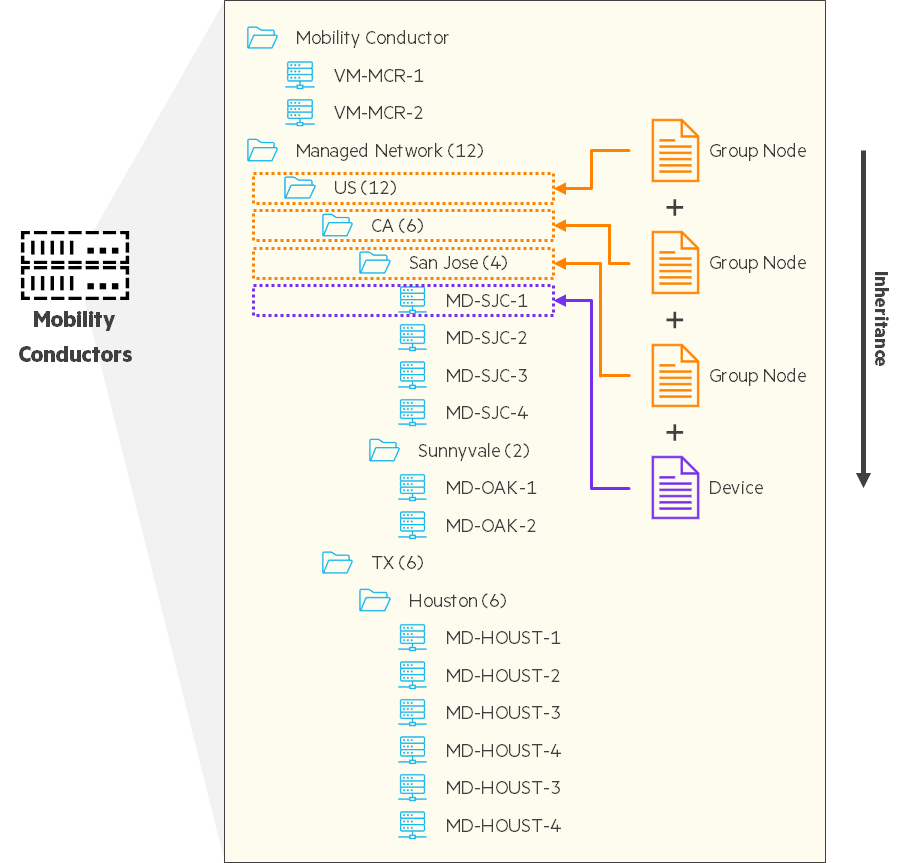
Mobility Conductor in AOS 8 provides a hierarchical structure that integrates all components below into a single management platform, greatly simplifying global or group configuration.
For AP and controller configuration and management Centralized architectureThe core role of
Mobility Conductor (MCR) of physical or virtual machines
Multi-level hierarchical structure: Top-down configuration information delivery → If necessary, policies can be set by group or specific site.
Service centralization – RF management (AirMatch) – Client terminal optimization (ClientMatch) – Service Search (AirGroup)
How AOS 10 (New Central) Works and Configuration
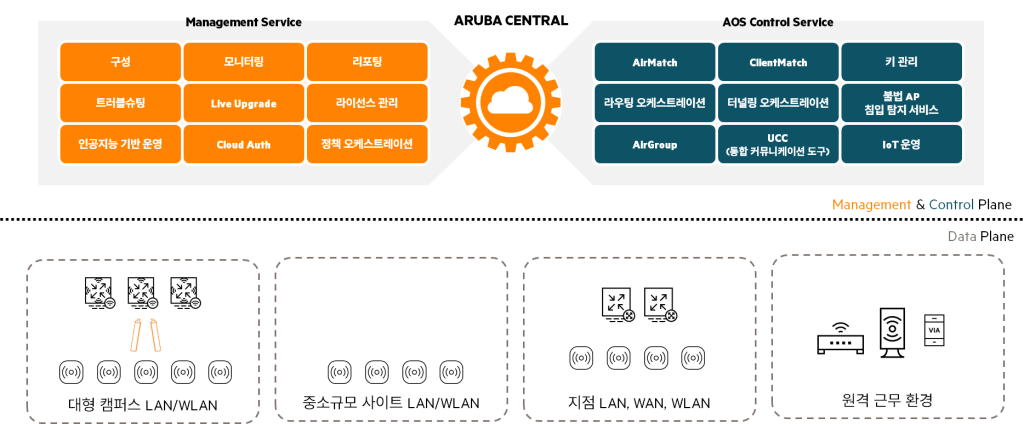
In AOS 10 Everything is managed from cloud-based Aruba CentralYes, that is, No separate MCR is required.
All gateways and APs are configured, updated, and monitored through Central. So all orchestration is done in Aruba Central.
The overall architecture is much simpler than AOS 8 and reduces on-premises server requirements. The hierarchical structure still exists, but it is now more flexible through Central, as shown below.
This flexibility allows for seamless adaptation to local site changes while maintaining consistency, along with the following characteristics:.
Flexible hierarchical organization: You can configure and set policies globally, by site, or by device.
Service Centralization: Services like AirMatch, ClientMatch, and AirGroup are all integrated into the cloud.
Scalability: Because analysis and monitoring are performed in a cloud environment, it is easy to expand the deployment environment.
Platform Evolution: AOS 10 is updated monthly with new features and improvements to easily adapt to changing needs.
Support for various environments: It can be used in both campus and branch environments, and can support both large-scale sites and distributed environments.
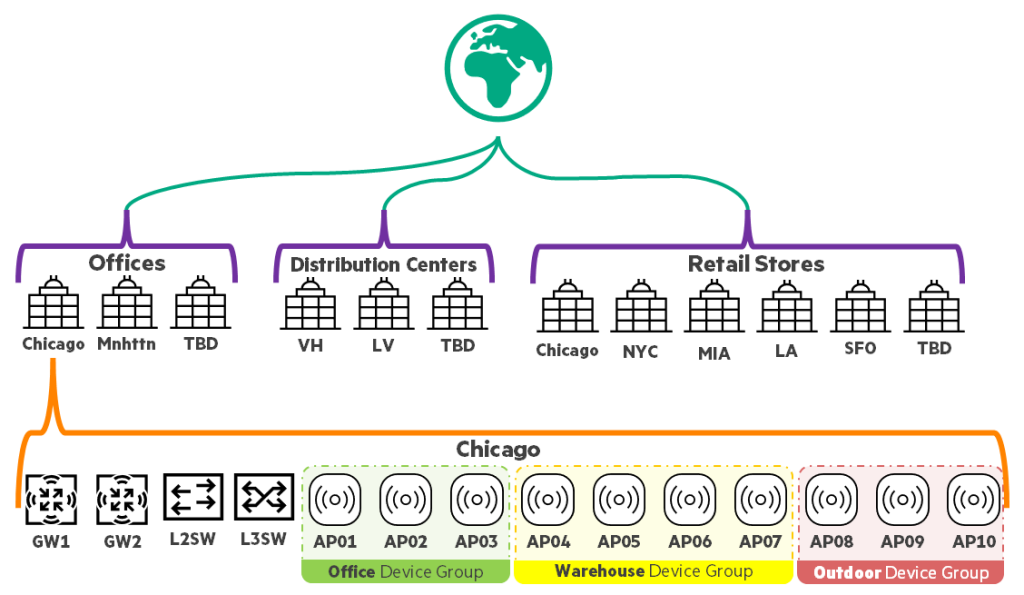
Hierarchical model in New Central (CNX)
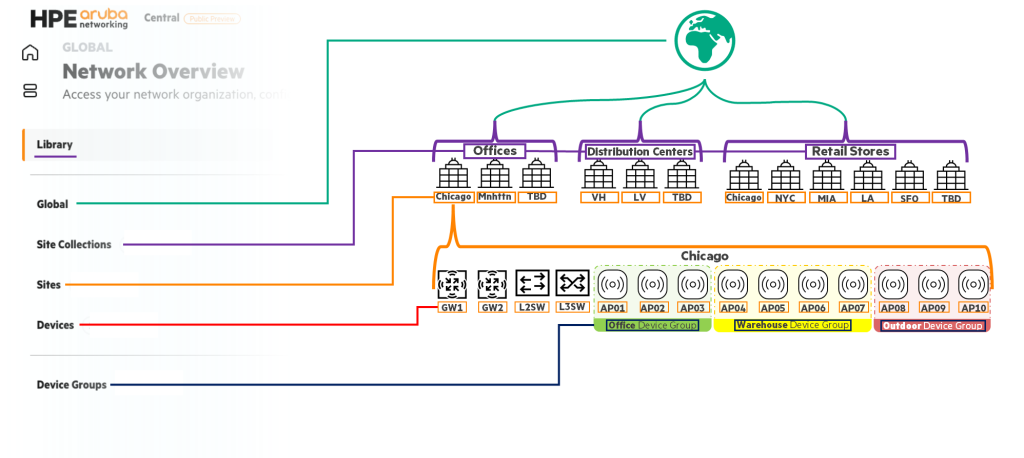
The new Central (CNX) has a different hierarchical structure than the existing Central. If you look at the picture below, you can see part of the Central configuration UI on the left.
Library: Save profile. Similar to "Save As" after changing settings in an existing profile.
Global: Where you apply configurations that need to be consistent across your organization. → Items inherited from all sites – SSID, role name, VLAN name, etc.
Site Collection: Grouping of office, distribution center, and store sites
Site: Each individual site, including New York and Chicago → Settings you want to specify separately for a specific site can be defined here.
Device: Devices such as gateways, switches, and APs deployed at each site
Device Group: Logically group devices with similar characteristics
This hierarchy allows you to manage thousands of devices across multiple locations and site types worldwide. If needed, you get the flexibility to adjust per site or per device.
This approach simplifies day-to-day management and ensures overall network consistency.
Check AOS 8 configuration information
To configure a new AOS 10 solution in Central, gather all the necessary information from your existing AOS 8 environment.
Gather the necessary information
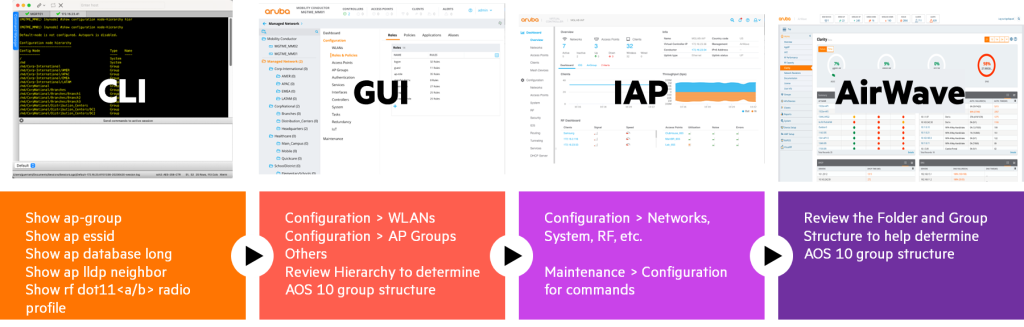
Information required from the network can be collected through CLI, Web UI, AirWave, etc.
Depending on your environment, you may need to obtain various information from the Mobility Conductor (MCR), Mobility Controller (MC), AirWave, etc. You can find more detailed information, CLI commands, etc. in the following guide.
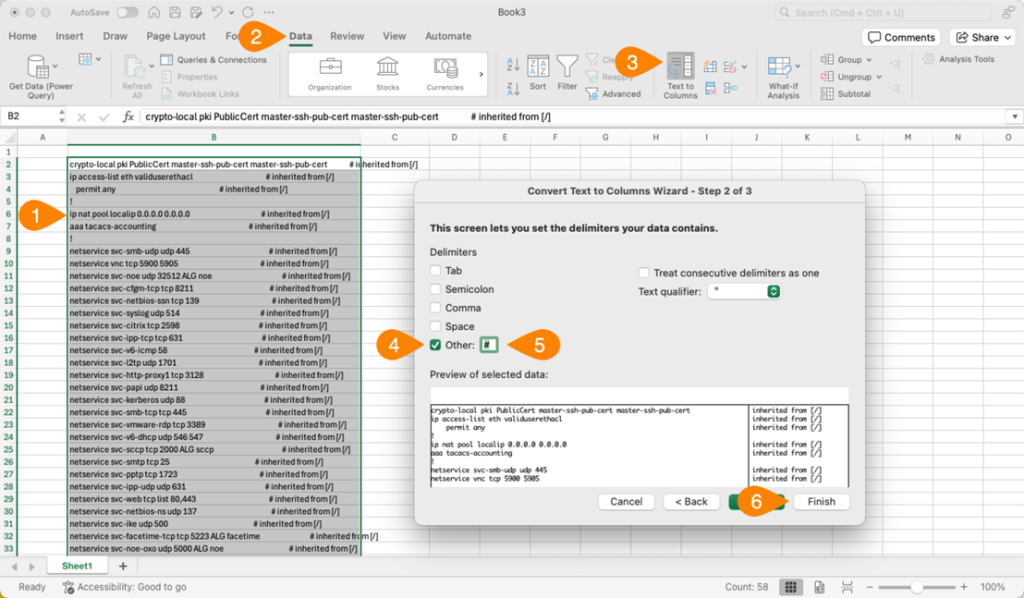
Paste the information output through the command into an Excel sheet.
Separate the configuration information from the source values based on “#” in the order of the screenshot above.
Highlight the filled cells.
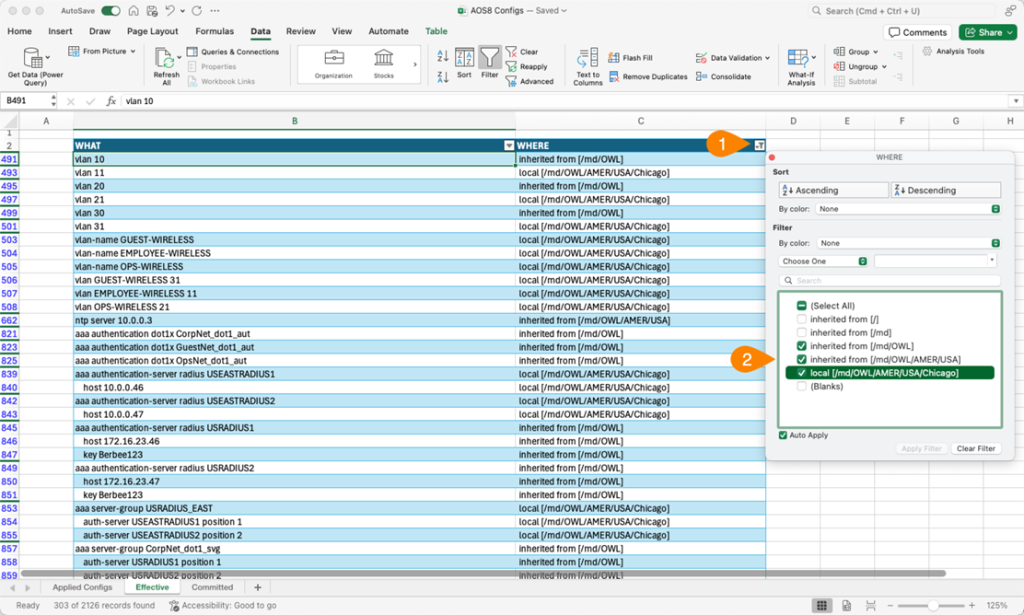
Convert the table (Ctrl + T).
Then it will be displayed as shown in the picture below.
To view configurations committed on a specific node, filter by the contents of the right column.
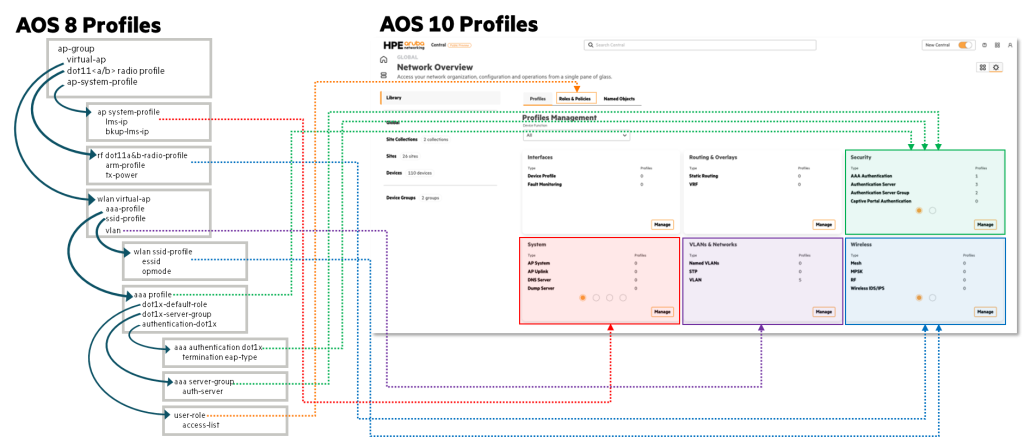
WLAN Configuration Reference: AOS 8 Profile → AOS 10 Profile
The image below shows a general overview of the AOS 8 configuration and the corresponding settings within the AOS 10 profile configuration page. The information collected in the previous discovery phase provides all the parameters required for a successful upgrade.
The profiles set in AOS 8 are displayed as GUI tiles in New Central where each profile can be set.
So, we've looked at what you need to know to move from AOS 8 to AOS 10.
The above lists methods along with considerations for upgrading from a very basic configuration. That is, depending on the actual environment and configuration, the checklist may be longer and the number of things to consider may increase.
Upgrades and migrations of large-scale sites must be implemented after sufficient discussion and review to ensure smooth and stable progress without issues. If you carefully read through the various guide documents provided by the manufacturer while writing and verifying the plan, you will be able to review it more easily.