After purchasing a switch, there are a few things you need to do before connecting it to your network, such as naming the switch and configuring its interfaces.
So today we're going to look at some very basic configuration commands for the AOS-CX switch.
Hostname settings
Unless you have only one switch, you should name each switch so they can be easily identified in a large network environment. In a production environment, this would be the first step.
Many companies have their own standardized naming conventions, and they often document and maintain them.
For example, some naming conventions are Building-Floor-Rack_Name It may be designated as . Then the name of switch 4 on rack 4 on the 2nd floor of building 9 is 9-2-4_SWA, 9-2-4_SWB, 9-2-4_SWC You can specify it as follows.
The following command will allow you to name the device:.
- Command Context: Config
- Syntax: hostname <HOSTNAME>
Example:
Switch(config)# hostname Access-1
Access-1(config)#
Interface Settings
By default, all ports on the AOS-CX switch are disabled. So, if you want to use a specific interface, you need to “no shutdown”You can update the status using the " command.
- Command Context: config-if (interface level)
- Syntax: shutdown / no shutdown
Example: Activating an interface
Switch(config)# interface 1/1/1 Switch(config-if)# no shutdownExample: Disabling an interface
Switch(config)# interface 1/1/1 Switch(config-if)# shutdownAdditionally, you can create a Description for each interface, which can also be used for management purposes.
- Command Context: config-if (interface level)
- Syntax: description <Description>
Example:
Switch(config)# interface 1/1/1 Switch(config-if)# description To-Core-switchCheck interface status
“show interface”" command allows you to check the status and configuration information of all interfaces on the switch. However, "“show interface” If you add a specific interface name after the command, only information for that interface will be displayed.
- Command context: Manager (#)
- Syntax: show interface <Interface-ID>
Access-1# show interface 1/1/1 Interface 1/1/1 is down (Administratively down)
 Admin state is down

 State information: Group speed mismatch Link transition: 0 Description: To-Core-switch
 Hardware: Ethernet, MAC Address: 90:20:c2:bc:3f:00 MTU: 1500 Type SFP-BT
Here “Administratively down“This means that the interface is “shutdown”" means that the command has been applied. And you can see that the content you just entered in the Description field has been applied.
“no shutdown”After applying the command and reapplying the interface, you can see the changes as shown below.
Access-1# show interface 1/1/1 Interface 1/1/1 is up
 Admin state is up
 State information: Group speed mismatch Link transition: 0 Description: To-Core-switch
 Hardware: Ethernet, MAC Address: 90:20:c2:bc:3f:00 MTU: 1500 Type SFP-BT
Network Discovery (LLDP – Link Layer Discovery Protocol)
Imagine you're remotely configuring an AOS-CX switch in a real-world operating environment. The switch is connected to multiple network devices, and you need to configure only the interfaces connected to the Aruba Controller. Since your IT team isn't on-site, you can't verify this yourself. You must find the correct interface remotely.
In this case, the problem can be easily solved by using LLDP.
LLDP is a vendor-neutral link layer protocol (Layer 2 IEEE standard protocol), not a protocol exclusive to a specific manufacturer. It is used to announce identity and capabilities over wired Ethernet connections. This protocol can be used to discover and document interconnections between network devices.
LLDP-MED, known as an enhanced feature of LLDP, stands for Media Endpoint Discovery. LLDP-MED enables automatic discovery of LAN policies, such as VLAN ID, Layer 2 priority, and differentiated services like QoS. Each device periodically transmits LLDP information in Ethernet frames. Directly connected devices receive these frames and store the information in a table in their local memory.
Okay, let's take a look at the picture below.
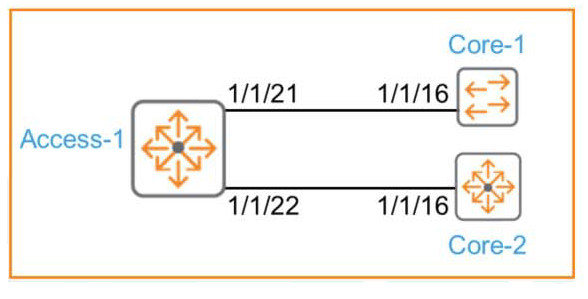
This is a situation where the Access-1 switch is connected to the Core-1 and Core-2 switches on top.
Port 1/1/21 on Access-1 is connected to port 1/1/16 on the Core-1 switch, and port 1/1/22 on Access-1 is connected to port 1/1/16 on the Core-2 switch. If you've already configured the switch with the diagram drawn as above, you won't need LLDP information. However, the documentation may be outdated or incorrect, or the configuration may have changed. In these cases, you can update the diagram using LLDP information.
※ Some people may feel that creating and continuously updating a configuration document is unnecessary. They question whether it's worth the time and expense of creating such documentation when the network is already functioning properly. However, when a network failure occurs, such up-to-date documentation can be invaluable in identifying and resolving the cause of the problem. Without such documentation, the entire network would have to be individually investigated, extending the downtime. What should be resolved in just 10-15 minutes can result in network outages lasting 4-5 hours or more.
AOS-CX switches have LLDP enabled by default.
As below: “show lldp neighbor-info” command displays information about neighbor devices connected to all interfaces.
- Command Context: Manager(#)
- Syntax: show lldp neighbor-info
- Authority: Operator or Manager
Access-1# show lldp neighbor-info

LLDP Neighbor Information ========================= LOCAL_PORT CHASSIS-ID PORT-ID PORT-DESC TTL SYS-NAME ---------------------------------------------------------------------------- 1/1/21 90:20:c2:bc:a8:00 1/1/16 1/1/16 120 Core-1 1/1/22 90:20:c2:bb:8b:00 1/1/16 1/1/16 120 Core-2
If you want to know more information about a specific interface, just add that interface after the above command.
Access-1# show lldp neighbor-info 1/1/21
Port : 1/1/21 Neighbor Entries : 1 Neighbor Entries Deleted : 0 Neighbor Entries Dropped : 0 Neighbor Entries Aged-Out : 0 Neighbor Chassis-Name : Core-1 Neighbor Chassis-Description : Aruba JL635A GL.10.04.0001 Neighbor Chassis-ID : 90:20:c2:bc:a8:00 Neighbor Management-Address : 10.250.1.3 Chassis Capabilities Available : Bridge, Router Chassis Capabilities Enabled : Bridge, Router Neighbor Port-ID : 1/1/16 Neighbor Port-Desc : 1/1/16 Neighbor Port VLAN ID : 1107 TTL : 120