


[ACSA Training #15] AOS-CX CLI Access
There are several ways to connect to an Aruba CX switch.
One of them would be to connect via the Console port.
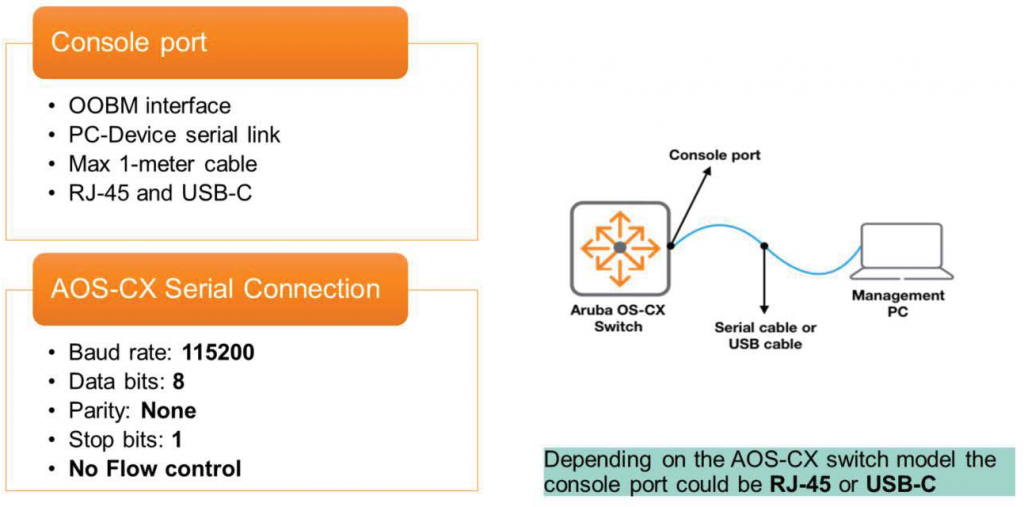
When you first configure a switch, you typically enable Out-of-Band Management (OOBM) on the console port.
This special console port is provided on all switch models and types to facilitate configuration, troubleshooting, and management. Depending on the switch model, the console port may be either an RJ-45 or USB-C port, but both require a serial connection between the management terminal (laptop) and the switch.
For this, you will need the following supplies:.
- If your switch has an RJ-45 port
- Serial cable (included with the switch)
- USB-to-Serial Converter – Laptops typically don’t have serial ports, so you’ll need a separate converter.
- Software to emulate serial sessions: PuTTY, TeraTerm, SecureCRT, etc.
- If your Switch has a USB-C port
- USB-C cable (the one you use for your phone will work too)
- Software to emulate serial sessions: PuTTY, TeraTerm, SecureCRT, etc.
Once everything is ready, you need to set the following parameters to establish a serial communication session.
![[ACSA 교육#15] AOS-CX CLI 접속 - image 30](/wp-content/uploads/2021/02/image-30.png)
- Baud Rate: 115200
- Data Bits: 8
- Parity: None
- Stop Bits: 1
- No flow control
AOS-CX Port Numbering
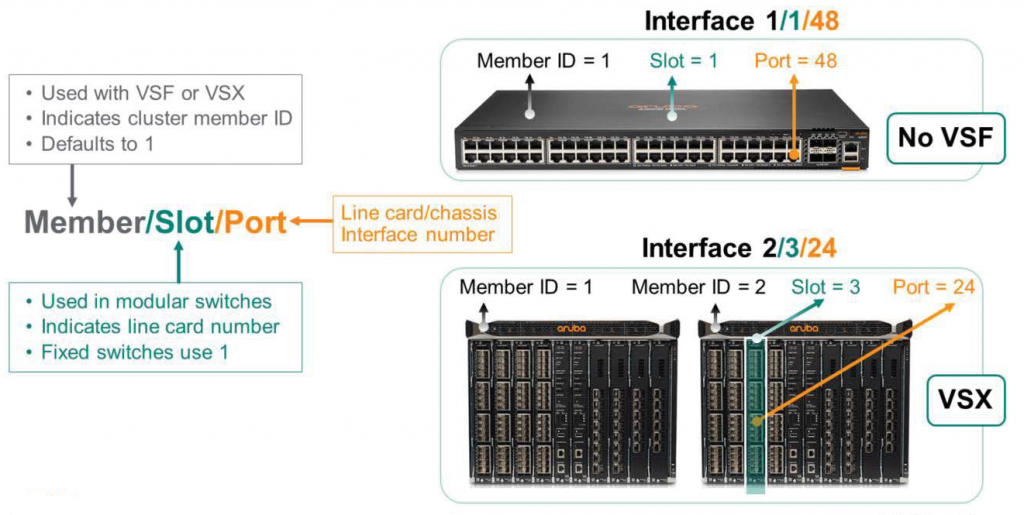
The interfaces of the AOS-CX switch follow the member/slot/port notation.
- Member: When Aruba Virtual Switching Framework (VSF) or Virtual Switching Extension (VSX) is configured, multiple switches appear as a single virtual switch. This number represents the member ID of the cluster. By default, when VSF or VSX is not running, it is represented as member number 1.
- Slot: On modular switches, such as the 8400 and 6400, this number indicates the slot used for a specific line card. On fixed switches (such as the 83xx, 6300, and 6200), it is always 1.
- Port: This number represents an individual interface on a line card (modular switch) or chassis (fixed switch).
The figure below shows an example of a modular switch with VSX enabled and a fixed switch without it.
AOS-CX prompt mode
AOS-CX consists of various configuration contexts, or levels. Each context determines which parts of the switch can be managed and which commands can be used by users with appropriate permissions. The AOS-CX operating system defines the following contexts:.
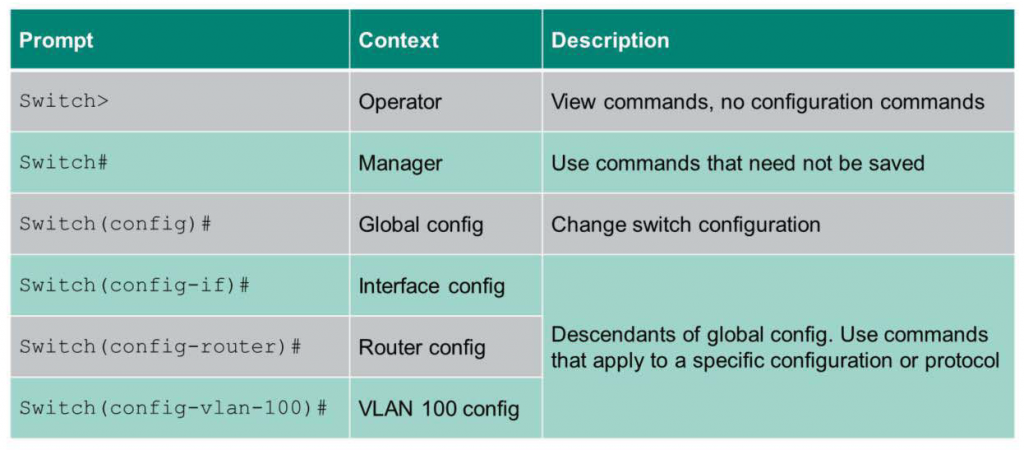
Operator Context ( > )
This operator context allows you to view the Config but not to change it. Running commands in this context requires the least user privilege. In the operator context, the CLI (Command Line Interface) prompt is the switch name followed by the greater than sign ( > ) appears.
Switch>Manager Context ( # )
In this context, you can perform commands that don't require saving the configuration. Here, the hashtag (#) follows the switch name. To move to the Manager context, start in the Operator context. Then, enter the enable command to gain administrator privileges.
Switch> enable
Switch#
Global Configuration Context (Config)
Here, you can execute commands that change the switch configuration. To access this mode, type "Configure Terminal" in Manager Context mode, or simply "config." To move back up one level, use the "exit" command.
Other Configuration Command Context
All other configuration command contexts are subordinate to the Global Configuration Context. This Command Context allows you to execute commands that apply to specific configurations or protocols, such as VLANs or interfaces.
Example:
Switch(config-if)# Switch(config-router)# Switch(config-vlan-100)#To return to the Manager Context from a sub-context, type the “end” command.
Switch(config-if)# end
Switch#
AOS-CX CLI Help Function
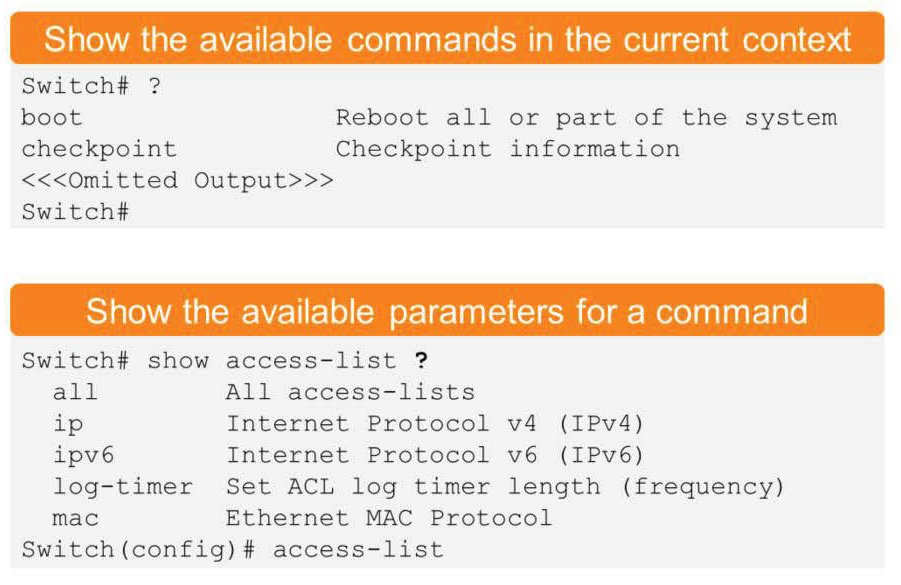
AOS-CX CLI provides built-in help functionality.
For example, to display available commands that can be run in the current command context, type the question mark (?). The question mark (?) you type here will not be displayed on the screen.
To display the parameters available for a command, type a space after the command and then a question mark (?). After displaying help information in the CLI, the previously entered text is automatically displayed, without the help mark (?).
AOS-CX Command Abbreviation Function
AOS-CX supports command abbreviations and command completion. To save time by entering only the abbreviated version of the full syntax, simply type enough characters to uniquely specify a valid command, and the CLI will accept the command. For example, you can enter "con" instead of "configure" to move from the administrator context to the global configuration context.
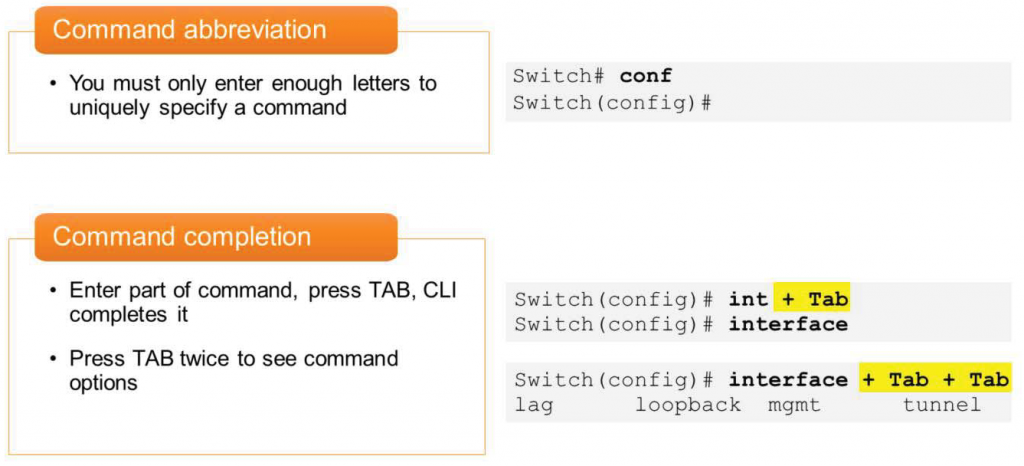
Command completion means that when you type part of a command and then press the Tab key, one of the following happens:.
- If you enter enough characters to match a valid command, the CLI will display a word alert message.
If you do not enter characters that match the correct command, the CLI will not complete the command.
for example,
Switch(config)# int + [Tab]
Switch(config)# interface
- Pressing the Tab key twice after a completed word will display the command options in the CLI.
You can complete all syntax by entering only part of the command using the Tab key as shown below.
For example.
Switch(config)# interface + [Tab] + [Tab]
lag loopback mgmt tunnel vlan vxlan
Today's explanation is based on AOS-CX, but other switch products are also [?] to check help or [Tab] provides all the same features, including auto-completion.
![[ACSA 교육#34] VRRP](https://egstory.net/wp-content/uploads/2021/06/enterprise.GettyImages-843530364-Medium-768x512.jpg)
![[ACP-DC 교육#6] DCI 및 OOBM](https://egstory.net/wp-content/uploads/2025/07/Data-Services-Cloud-Console_security_blog-768x512.png)

![[ACMA 교육#4] AOS 8 아키텍처](https://egstory.net/wp-content/uploads/2022/07/Mobile-Devices-in-Hand-768x377.png)
![[ACP-DC 교육#4] 데이터센터 네트워크 구축](https://egstory.net/wp-content/uploads/2025/07/HPE-Pointnext-Services-technology-services-consulting-DCMS-768x512.png)