Previous PostLearn about adding Aruba devices to the cloud.
Now, to actually operate, you need to map subscription licenses to devices. Let's learn about subscription assignment and key management.
HPE GreenLake Device Assignment
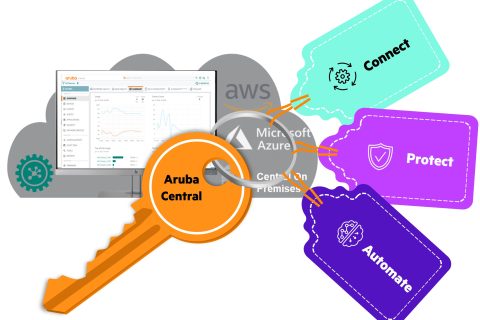
HPE GreenLakeis HPE's common cloud platform. It offers a variety of HPE services, including Aruba Central. After onboarding network devices to the HPE GreenLake cloud, you must assign them to the appropriate application services within HPE GreenLake.
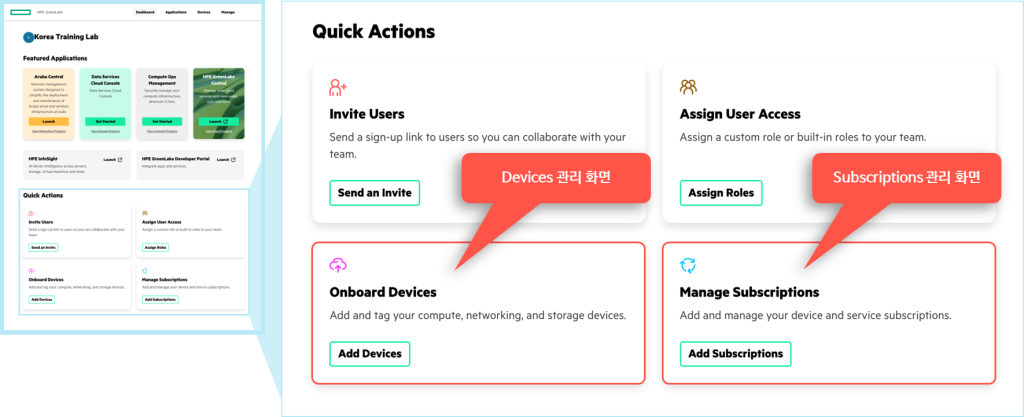
You need to assign it to the application (Aruba Central) by following the steps below:.
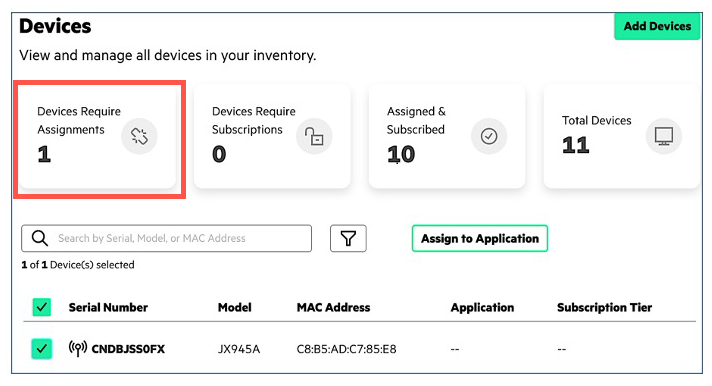
- On the Device Management page, “Device Require Assignments“Click “.
- The list of devices below will show the devices that need to be assigned.
- Select the devices to which you want to assign the application by checking the checkboxes next to the devices.
- “Assign to Application“Click on it.
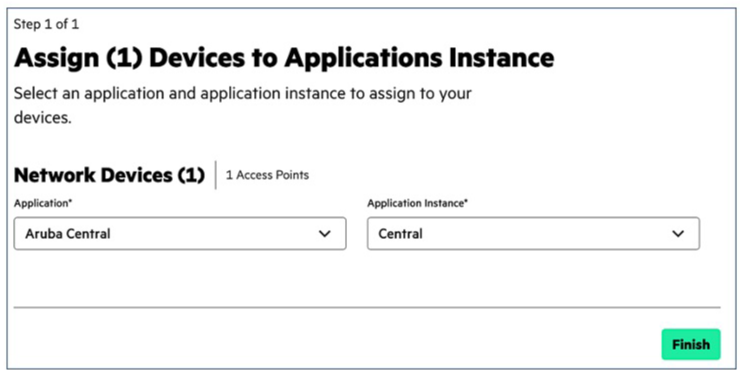
“Assign to Application” option, the application instance allocation screen will pop up.
Select the application (service) and instance (region) to assign from the drop-down menu and click Finish.
When a message appears indicating that the device has been assigned, click Close to close the window.
License and Subscription Management
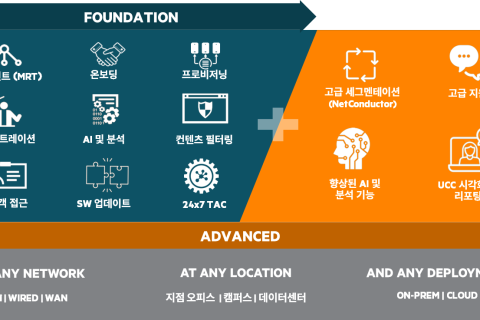
License Types and Features
Previous posts related to using Aruba CentralAs explained in , Aruba Central has two license types:.
- Foundation License
- Advanced License
Aruba Central's two licenses provide different capabilities depending on the device type.
More detailed functional differences are Link belowYou can check it at .▶ Features by Aruba Central License (Click to view details)
Aruba Central licenses are available in subscription terms of 1, 3, 5, 7, and 10 years.
And the detailed device models that can be connected to Central are Aruba Central Online HelpYou can check it at .
Subscription Management
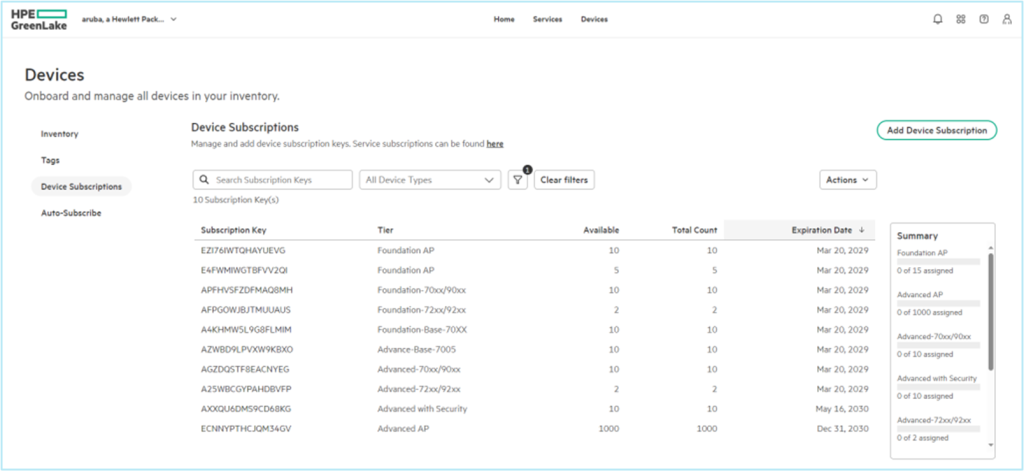
You can view and manage your subscription keys on the Device Subscription page.
The Subscriptions page displays your current subscriptions and allows you to add more as needed.
To add a new subscription key, select Add Device Subscription and enter the subscription key you received from HPE Aruba.
Subscription Assignment
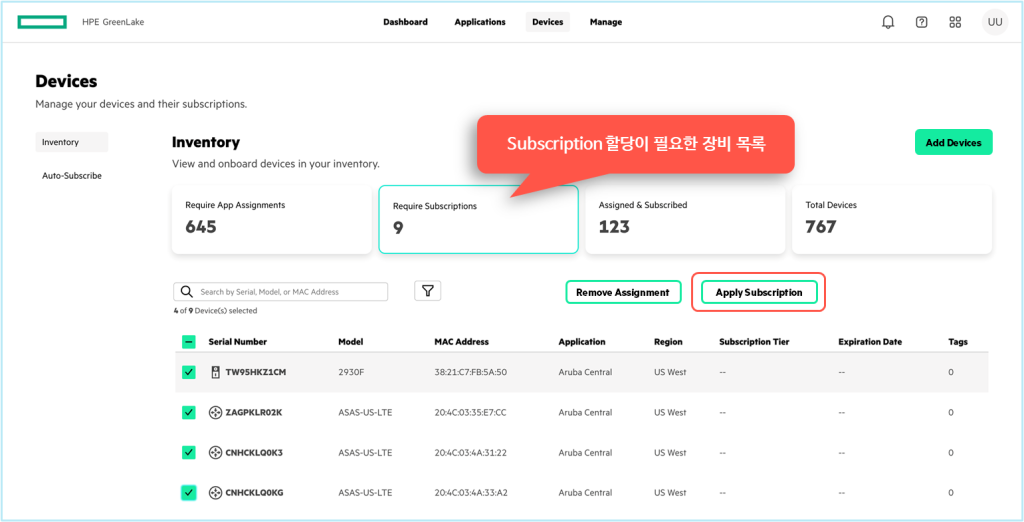
Devices requiring subscription can be checked by clicking the Require Subscription item in the Device Inventory section.
Select the devices to which you want to assign the subscription by checking the boxes and assign the new subscription by clicking the Apply Subscription button.
In addition to manually assigning subscriptions, you can also have them assigned automatically via “Auto-Subscribe.”.
We've covered onboarding network devices to the HPE GreenLake cloud, connecting them to Aruba Central services, and assigning subscriptions.
Once an Aruba network device is registered with Aruba Central and assigned a subscription key, local configuration is no longer allowed.
This is to ensure that only Aruba Central controls the devices, preventing configuration information mismatches between Central and the devices.
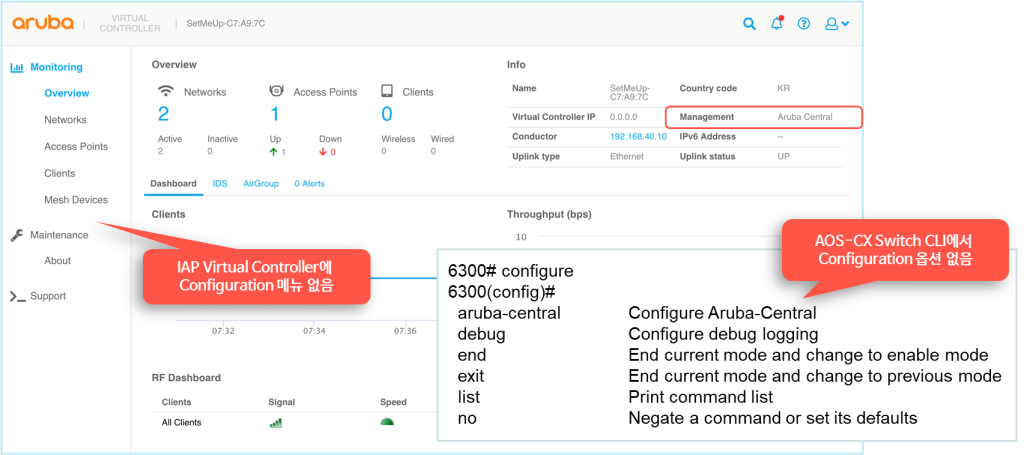
As you can see in the image above, there is no configuration related menu in the IAP web interface (Web GUI).
The CX switch also has no configuration related options in the CLI menu.
※ Note: The CLI Configuration Lock feature is only available in AOS-CX 10.07 or later.
※ Note: If the network device 15 minutes or more If you cannot connect to Central Restored to enable local configuration.